

Start in the browser you normally use
If you opened bharat club from a chat, first identify whether you are still inside the messaging app. Its built-in browser may place refresh, download and address controls in different locations. Open the same public page in your regular browser and compare the result. A page that loads there gives you a working route and narrows the original issue to a particular browsing context.
Choose the instructions for your phone
The illustrated sections below show the connection app on iPhone and Android. Follow the set for the operating system you have in your hand. Read the publisher name on the store listing and review each permission prompt on the device itself. A work-managed phone may reserve network settings for an administrator. If the device says a change is managed, keep a note of the message instead of repeatedly attempting the same change.
Test one connection at a time
Use a familiar page to see whether the connection is working generally. On public Wi-Fi a sign-in screen may appear before ordinary pages can load. Once connected, return to the same bharat club page and reload it once. Comparing the same address before and after a change gives you a clearer result than switching browser, network and page all at the same time.
Resume an interrupted visit
When you reopen a prediction panel after changing apps, read its interval window and current IST clock. Time may have passed while the browser was in the background. If your concern is a file already saved on the phone, move to Download and check its completion status. Network setup, reading a web page and opening an installation file each have different controls and different signs of progress.
iPhone connection setup
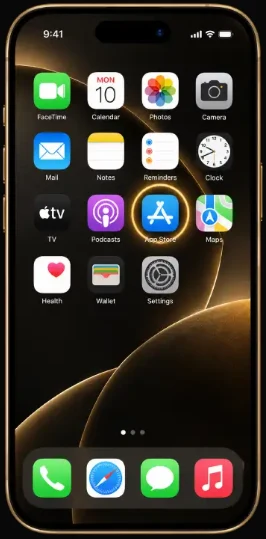
Open the App Store.
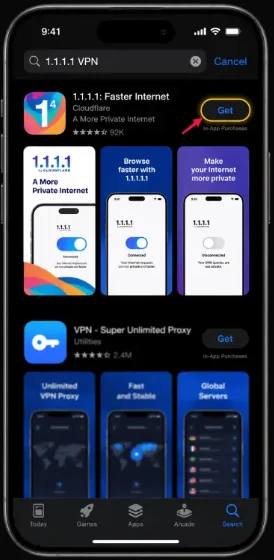
Find the 1.1.1.1 app by Cloudflare and check its publisher.
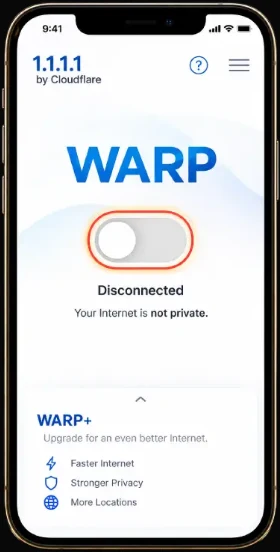
Open the app and review the VPN profile permission on your device.
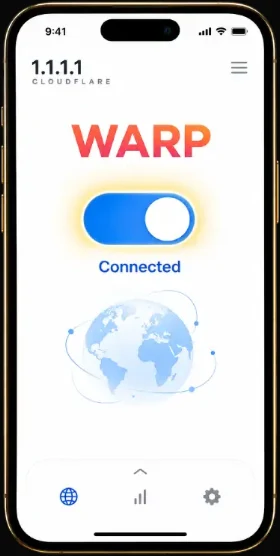
Switch on WARP, check the connection indicator and return to your browser.
Android connection setup
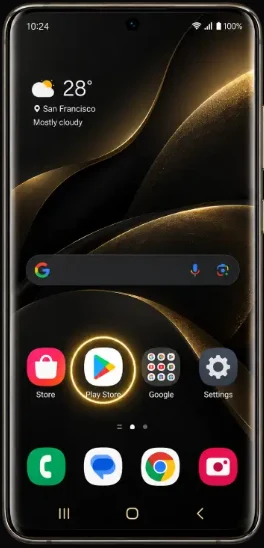
Open Google Play.
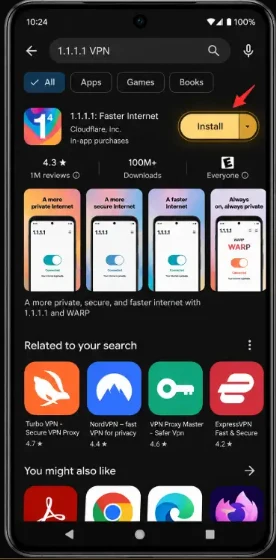
Find the 1.1.1.1 app by Cloudflare and check its publisher.
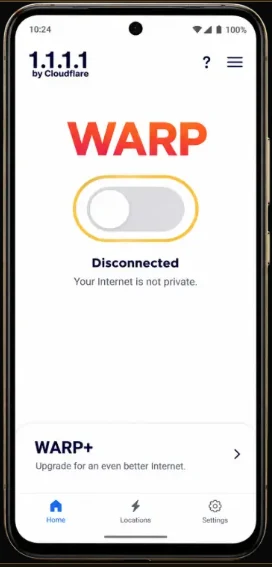
Open the app and review the VPN profile permission on your device.
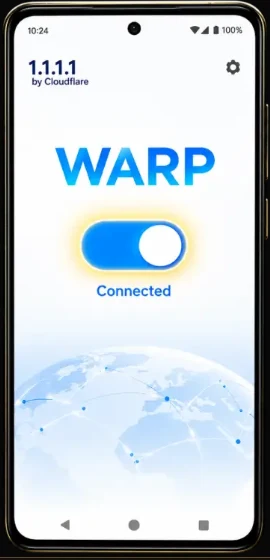
Switch on WARP, check the connection indicator and return to your browser.